How to Detect and Remove Malware Using Windows Defender in Windows 11
Malware infections can slow down your system, steal sensitive data, and compromise your privacy. Fortunately, Windows 11 comes with a powerful built-in security tool — Windows Defender (Microsoft Defender Antivirus) — that can effectively detect and remove malware without requiring any third-party software.
In this guide, you’ll learn how to detect, scan, and remove malware using Windows Defender in Windows 11, along with best practices to keep your system secure.
What Is Malware and Why Detection Matters
Malware is any malicious software designed to harm your system or steal information. Common types include:
Viruses
Trojans
Ransomware
Spyware
Adware
Rootkits
Even a single infection can:
Slow down system performance
Cause unexpected crashes
Steal passwords or financial data
Allow attackers remote access
Early detection is critical — and Windows Defender is your first line of defense.
What Is Windows Defender in Windows 11?
Windows Defender, officially known as Microsoft Defender Antivirus, is a real-time security solution built directly into Windows 11. It offers:
Real-time threat protection
Cloud-based malware detection
Ransomware protection
Automatic threat removal
Regular security intelligence updates
Best of all, it’s free and enabled by default.
How to Check If Windows Defender Is Enabled
Before scanning for malware, make sure Windows Defender is active.
Steps:
Press Windows + I → Open Settings
Go to Privacy & security
Click Windows Security
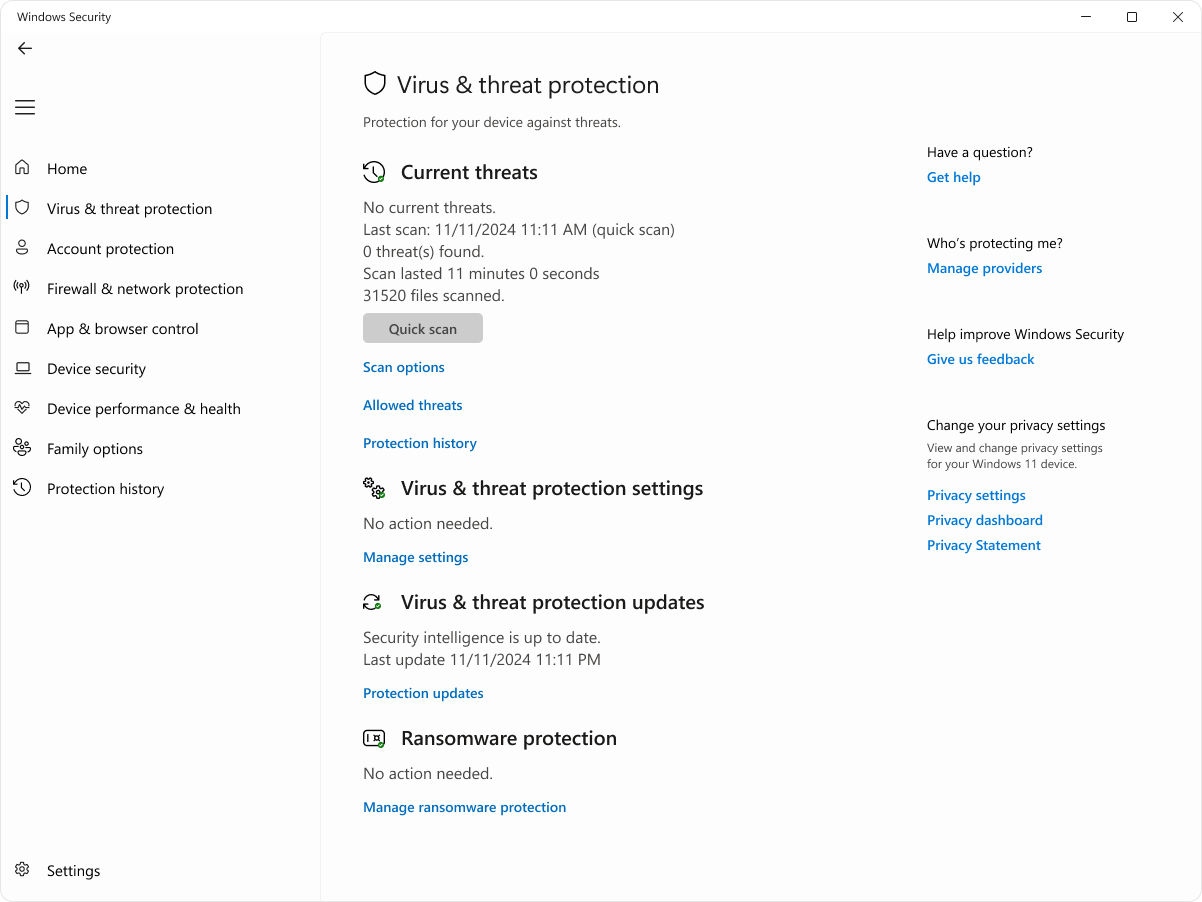
Select Virus & threat protection
If Defender is enabled, you’ll see a green checkmark and “No action needed.”
How to Detect Malware Using Windows Defender
Windows Defender offers multiple scan types depending on how deep you want to inspect your system.
1. Quick Scan (Fast Detection)
Best for routine checks.
Steps:
Open Windows Security
Click Virus & threat protection
Select Quick scan
⏱ Takes 2–5 minutes and checks:
Running processes
System memory
Common malware locations
2. Full Scan (Deep Malware Detection)
Recommended if you suspect an infection.
Steps:
Go to Virus & threat protection
Click Scan options
Select Full scan
Click Scan now
⏱ Can take 30–90 minutes depending on storage size.
3. Microsoft Defender Offline Scan (Advanced Threats)
Best for rootkits and persistent malware.
Steps:
Open Scan options
Select Microsoft Defender Offline scan
Click Scan now
Your PC will restart automatically
✔ Scans before Windows fully loads, making it harder for malware to hide.
How to Remove Malware Using Windows Defender
Once a threat is detected, Windows Defender handles removal automatically.
Steps:
After scan completion, click Protection history
Review detected threats
Select the threat
Click Remove or Quarantine
🔒 Defender isolates the malware so it can’t harm your system.
Enable Real-Time Protection (Critical Step)
Real-time protection stops malware before it runs.
Steps:
Open Virus & threat protection
Click Manage settings
Turn ON:
Real-time protection
Cloud-delivered protection
Automatic sample submission
How to Protect Windows 11 from Future Malware Attacks
Follow these best practices:
Keep Windows 11 updated regularly
Avoid downloading cracked or pirated software
Be cautious with email attachments
Use strong, unique passwords
Enable Controlled Folder Access (anti-ransomware)
Common Signs Your System May Have Malware
Watch out for:
Sudden slowdowns
Frequent pop-ups
Browser redirects
Unknown startup programs
High CPU usage at idle
If you notice these, run a Full Scan immediately.
Is Windows Defender Enough?
For most users — yes.
Windows Defender now provides:
Enterprise-grade protection
Excellent detection rates
Minimal system impact
Unless you need advanced features like sandboxing or centralized management, Defender is more than sufficient.
Final Thoughts
Windows Defender in Windows 11 is a powerful, reliable, and free malware protection solution. By running regular scans, keeping real-time protection enabled, and following basic cybersecurity hygiene, you can keep your system safe without additional antivirus software.